
Welcome to the YourPace program, our pathway to creating opportunities for academic success and degree completion for learners in Maine, and across the globe! This page is full of resources to get you up-and-teaching in no time! In the meantime, don’t forget to bookmark these other great resource pages:
- CTL Staff contact & booking page for ID help
- UMPI’s Academic Commitments (across modalities)
- Introducing YourPace
- Resources for New Faculty (resources for grades, IT, Student support resources and more!)
Navigate a YourPace Course
Semester Set Up
There are key responsibilities (house-keeping tasks), that faculty are responsible for, to ensure that they are semester-ready for students:
- Check the homepage Course Overview widget: ensure that it includes information about your 72-hour response time and does not contain old faculty contact information.
- Check to ensure your Syllabus and personal faculty information
 are correct (see below), and all tutoring and support messaging is current.
 - Review content and become familiar with the Milestone and Final Assessment requirements.
- Prep your Assessments: enable Turnitin if it’s not already.
- Add a Course End Date to the course.
 are correct (see below), and all tutoring and support messaging is current.
Essential Update: The Syllabus Area
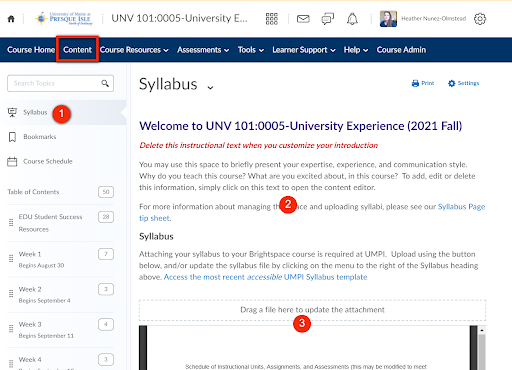
The Syllabus in a Brightspace course is always available at the top of the left-hand menu, on the Content page. Since this is essential course information, and students will land here the first time they access the course content, it is imperative to update the syllabus and personal faculty message.
Access this section, to make updates, by clicking Content in the NavBar:
- Ensure that the Syllabus menu item is selected.
- Click anywhere in the course information box, to add your personal faculty introduction (Who are you? What is your background? What do you bring to the course?), as well as any current contact information.
- Read the Syllabus and take special note of the AI use policy for this course. If you would like to edit this policy, download the file, make your edits, and then replace the file in the Course Files
 .
.
Grading in YourPace
Assessment in the YourPace program plays an essential role in the success and perseverance of our students. As a teaching faculty, you do not have to develop Milestone (formative) or Final Assessments (summative), but you are responsible for providing timely, engaging, and meaningful feedback for students, as they work through the skills needed to successfully complete their Final. Here are some key differences:
In YourPace, there is only one high-stakes assessment that is graded: the Final Assessment. This is the only activity that has a formal Grade column, and this alone informs the final grade entered in Mainestreet . Students have one submission opportunity for the Final as well as one opportunity to submit a Draft Final Assessment option for feedback.
Although there is only one formal recorded grade, there will be Milestone assignments (added for every 1-2 Learning Outcomes or so), that will allow students to practice and master content along the way–your feedback is necessary for this process!
Since moving forward with coursework is locked until the faculty assesses a Milestone with a score of 3 (proficient) or higher, it is imperative that faculty provide feedback within 72 hours. Students can keep submitting Milestones until they provide sufficient evidence that they understand the Outcome.
Grading with Rubrics
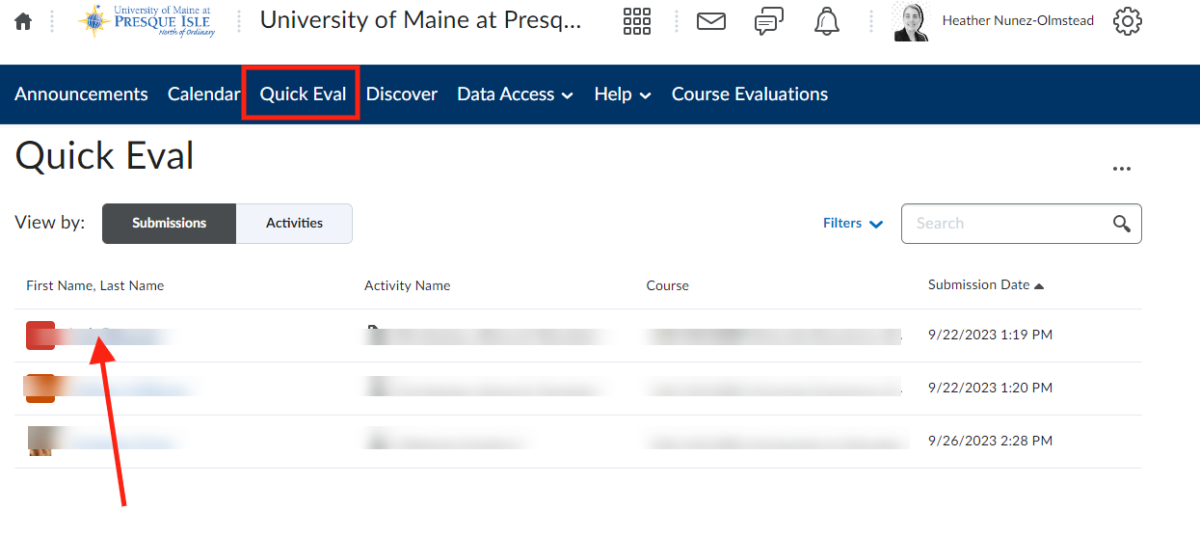
All instructional faculty must grade utilizing the Brightspace rubrics. Access grading rubrics quickly and easily, using the Quick Eval tool to access the student submission you wish to grade:
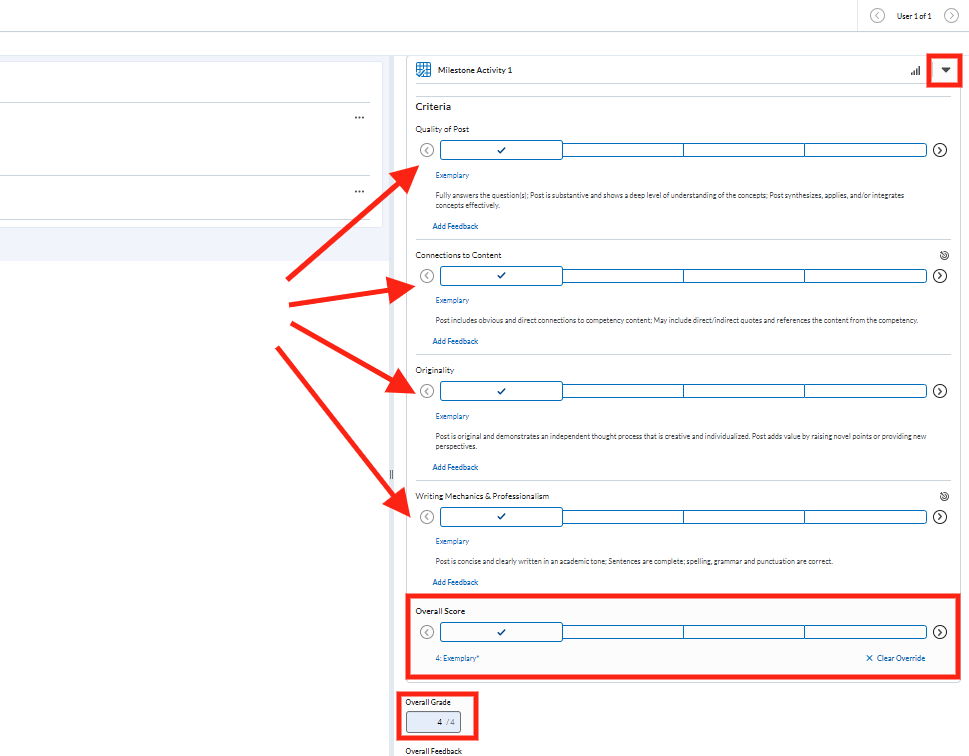
Once in the grading panel, you will be able to open the grading rubric on the top right. You can assess the posted criteria and add criterion feedback as desired (below). You will also note that some criteria have a target icon–that means this criterion is measuring a Learning Outcome. It is essential that you ensure that the Overall Score is recorded, and that you have entered an applicable points grade. You will also have the ability to post holistic feedback, links, and annotate documents directly in Brightspace:
Teaching in YourPace FAQs
Here is how to double-check your grading, to ensure that students can submit their Finals!
You can find your student’s Academic Success Coach in Mainestreet. You will need their Student ID number which is the Org Defined ID in your class list in Brightspace.
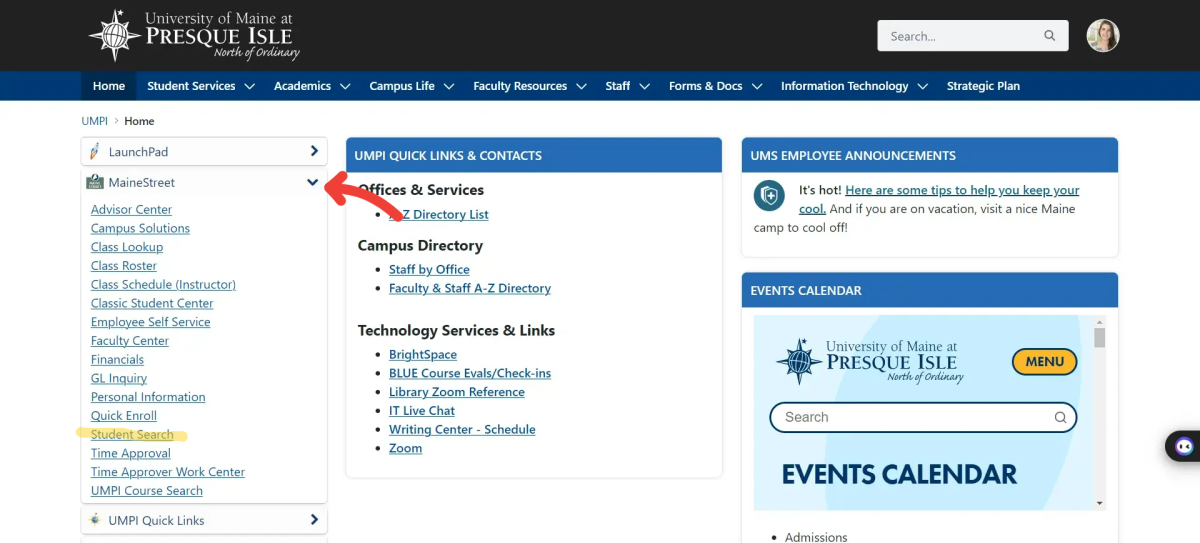
From your MyUMPI portal, open the Mainestreet menu, and select Student Search:
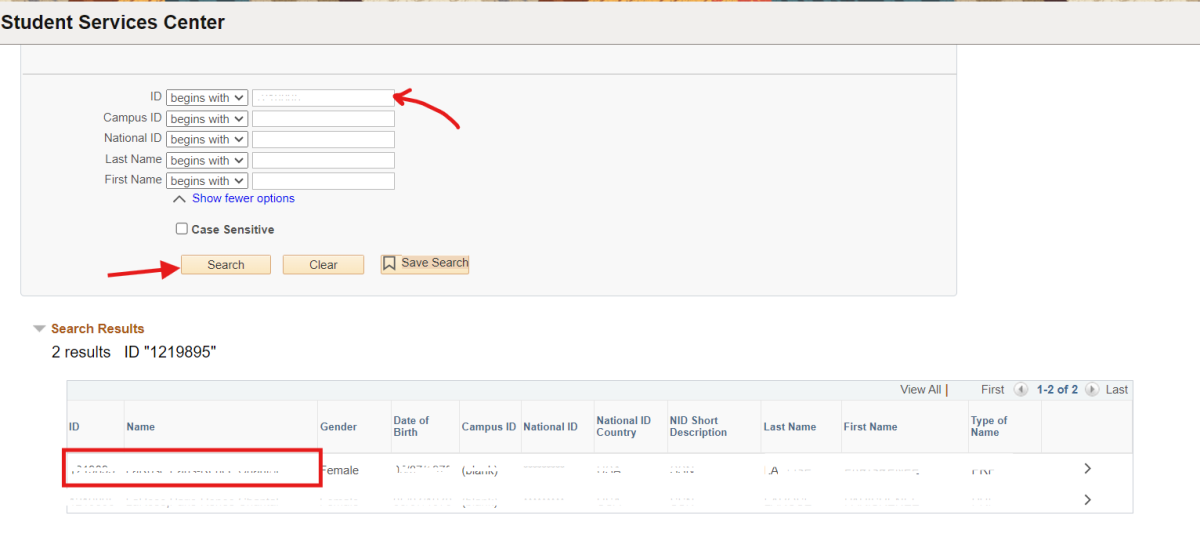
Add the student’s ID to the ID field and Search. Click the student name in the search results:
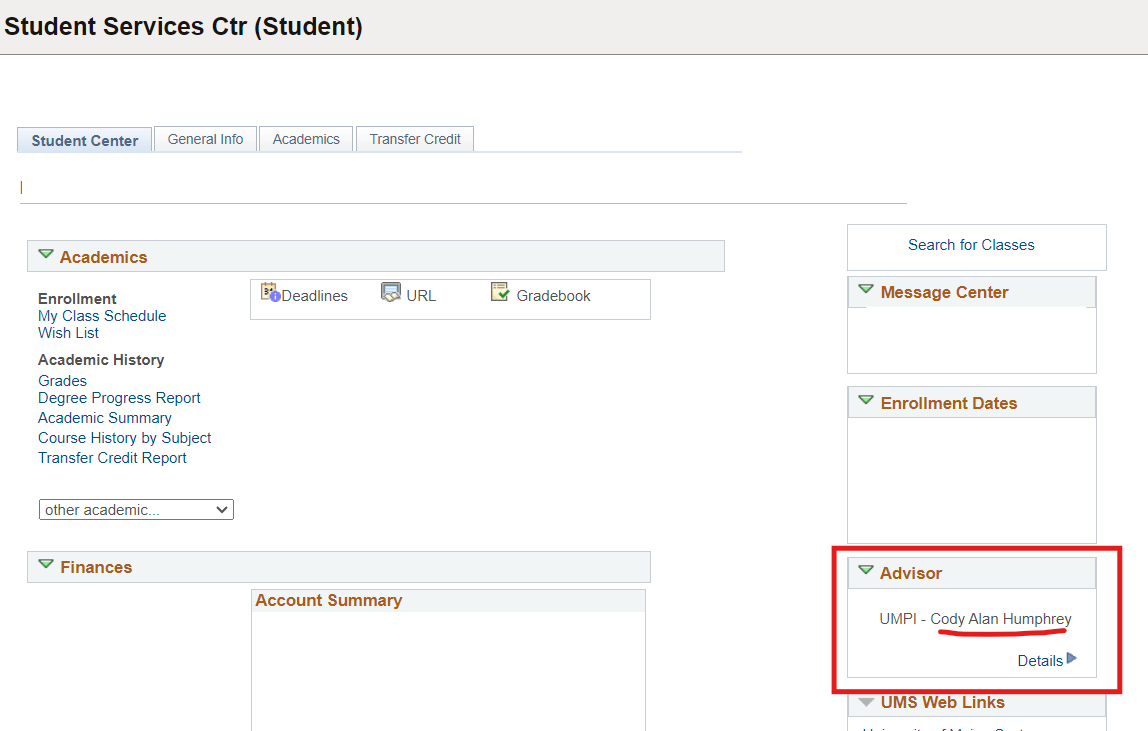
On the Student Services Ctr page, scroll down to bottom right corner of the page to see the module titled Advisor. In the Advisor module, the student’s Academic Success Coach will be listed:
Our students will come to us with a great variety of skill sets, both academic and discipline specific. If you suspect a student has plagiarized work or submitted AI-generated content as their own, the best first step is to work with the student to address concerns and give them a chance to explain their choices. This is an essential first step in the academic integrity procedure. At this point, you can work with the student to clarify needs and expectations, and you may drop allegations if you choose. If your communication with the student is unsatisfactory, or you choose to file an official report, you will need to file an official Maxient form. During this time, the student will not be able to withdraw from a class. Here is how:
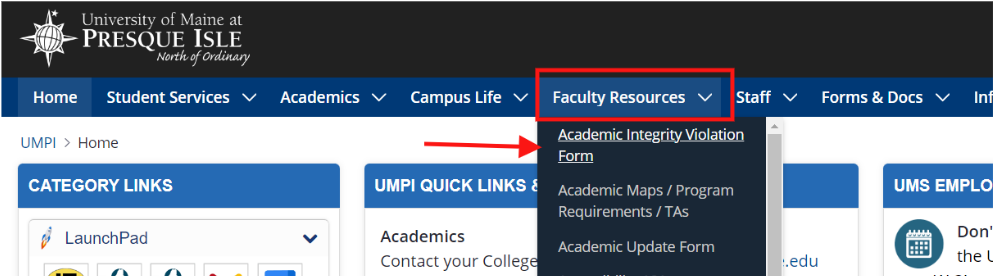
In your MyUMPI portal, open the Faculty Resources menu and choose Academic Integrity Violation Form.
Complete the basic information in the Maxient report form:
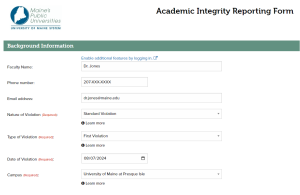
Complete the student and faculty information. You will need the Student ID and email (from your Classlist), as well as information for the course, semester, and a description of the offense. Following the discussion about academic dishonesty, you will also be required to recommend a sanction for the student.
You have the option to upload documentation to support your academic record submission. Lastly, you will be responsible for emailing the student the completed Academic Integrity Form.
If you are unsure if a student’s submission violates the UMS Academic Integrity Policy, please review it before submitting a report.
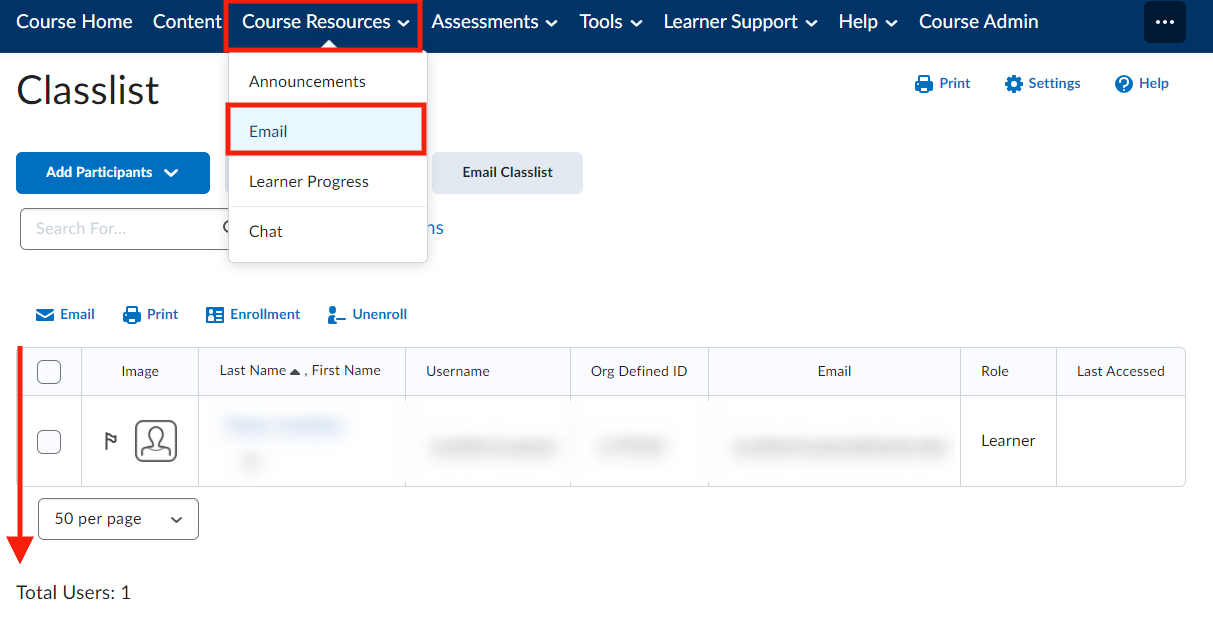
You can view all students who are active in your course, by selecting the Email button in the Course Resources menu (this is Brightspace’s Classlist tool). You can email and/or print class lists from this page. Note: you will not be able to see students after they withdraw.
If you find (or a student finds) that a content link in your course is broken, and you can easily find a replacement, please let your Center for Teaching and Learning designers know, so they can help you to update, and update the course Masters to reflect the correction.
YourPace CBE curriculum has undergone a rigorous content and design review, and the content is licensed to UMPI for use. These courses have been vetted by full-time faculty in the programs. Teaching faculty should not change or update any learning content areas that are not broken. If you have any concerns about the content (beyond replacing broken links), please contact the Executive Director of YourPace, Courtney Boma at courtney.boma@maine.edu. Any curricular changes will have to be done with relevant program faculty, program advisors, Academic Dean, and YourPace staff.
If you are the faculty designer, you can report requested changes via this form.
The short answer is: YES. In Brightspace there are many ways to provide feedback, but at the very least, you must complete the assessment rubric, provide a numeric score, and include written or multimedia feedback in every Milestone and Final Assessment. These are attached to Course Learning Outcomes, and we use this data for reporting purposes.
One advantage of teaching YourPace CBE courses on Brightspace is that all faculty and students have wide access to IT Helpdesk support. If your students are struggling with logging in, using Kaltura, accessing or downloading MS Office apps, downloads, or other tech issues, direct them to help@maine.edu. If a student seems to be struggling with time management or other aspects of being an online student in a CBE modality, please direct them to their Academic Success Coach.
If you will be away from your computer for a couple of days, you can email your students (from the Email/Classlist in the course) to let them know what dates you will be unavailable. Letting students know early will allow them to plan accordingly. Be sure to CC the Academic Success coaches, so that they know about, and can support your travel.
If you are planning extended travel and are going to be unavailable for more than a few days, please let the YourPace team know as soon as you can (before the start of the term), so that they can plan accordingly.
Please remember that all student work must be assessed with feedback within 72 hours unless arranged in advance with notification to the students.
Some courses are designed with discussion interactions that allow the teaching faculty to have regular and ongoing supportive dialog with students. If this is the case: yes, you do have to use these as the course is designed.
If your course does not have structured Discussion activities, you may create a Discussion topic where students can ask questions about the course content or volunteer to share their work. Note that students may or may not access any of those spaces. Do not create topics that require students to comment or interact with peers because students are on different work and progress schedules.
Your can tell that a student dropped your class in several ways:
- You no longer see them in your Classlist.
- In your Mainestreet Class roster, you see a “W” next to their name.
- In your Classlist, under Enrollment Statistics, you see them listed in “Withdrawals”.
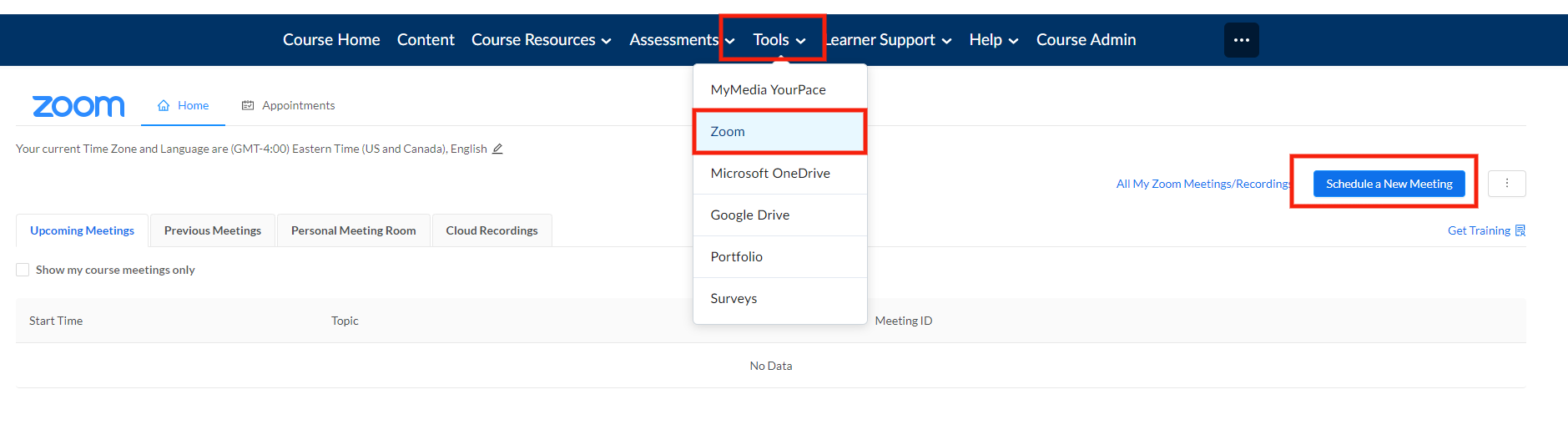
All UMPI faculty, staff, and students have access to a Pro Zoom account through the UMS. Zoom is a great tool for office hours, as you can screen share, whiteboard, share resources, and chat. You AND students can easily create, manage and join Zoom meetings right in Brightspace, through the Tools menu on the NavBar:
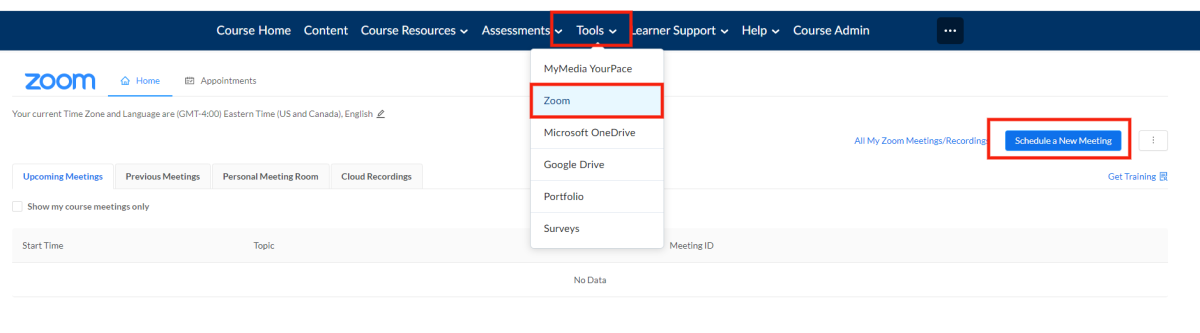
Note: in your meeting settings, you can even make it re-occurring; perfect for office hours!
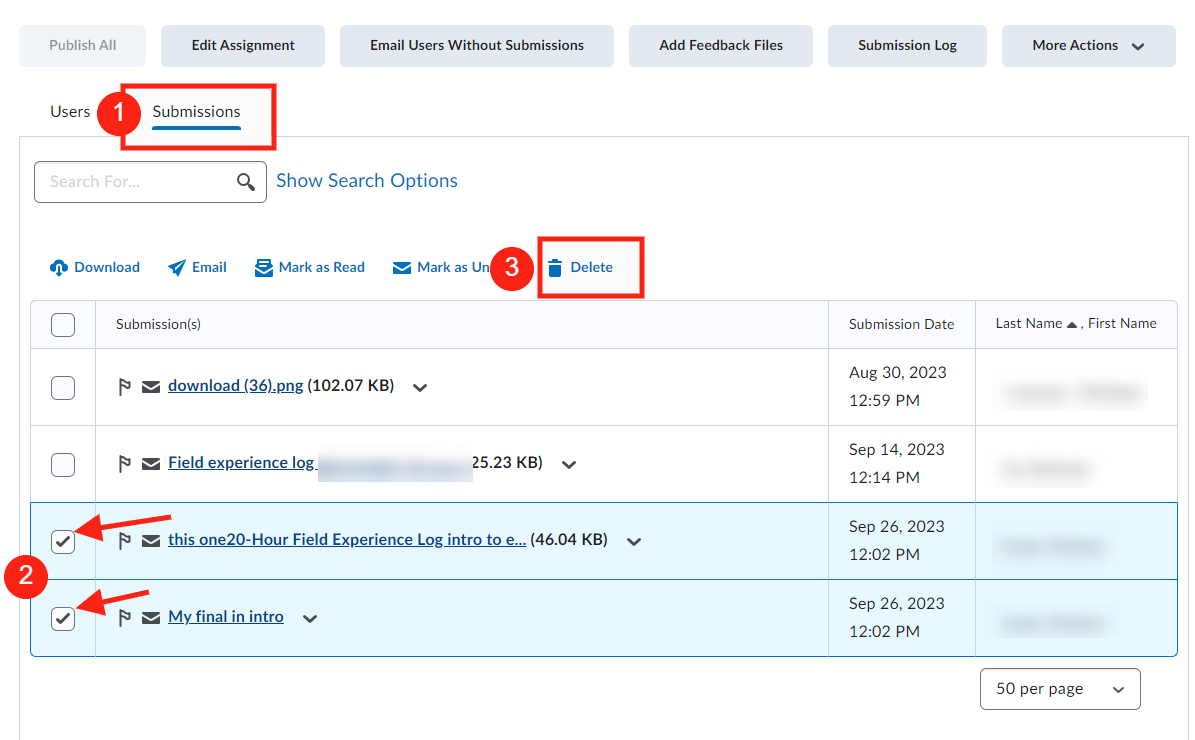
If a student accidentally submits the wrong file to a Final, or submits a Draft attempt to the Final assignment, it is easy to fix:
- Access the Assignment through the Assessments tab in the NavBar.
- Click into the Assignment (in this case, Final) that the student submitted to.
- In the Submissions tab, check the submissions to delete and click the Delete button:
For questions or concerns with contracts, compensation schedules, and/or course loads, please contact the YourPace Executive Director: Courtney Boma at courtney.boma@maine.edu.