Google Workspace for Education tools allow us to create content, and manage collaboration, communication, and assessment with one fluid set of tools that many students are familiar with.  While all students and faculty have access to the Microsoft Office suite of word processing tools, the GSuite is really well equipped with collaborative projects, workshopping, and group work in mind.

Access Google Apps

It’s easy to access your Google Workspace Apps from the MyCampus portal Launchpad or from within any Google App.
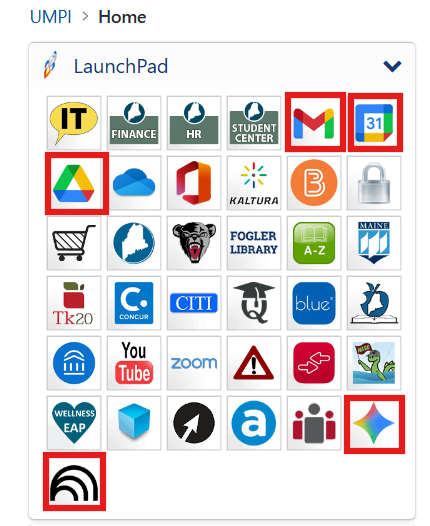
MyCampus Launchpad with Google Apps highlighted

You and your students will find Gmail, Google Calendar, and Google Drive right at the top of the Launchpad. New additions at the bottom of the Launchpad include Google Gemini and Google NotebookLM, two of the Google AI apps.
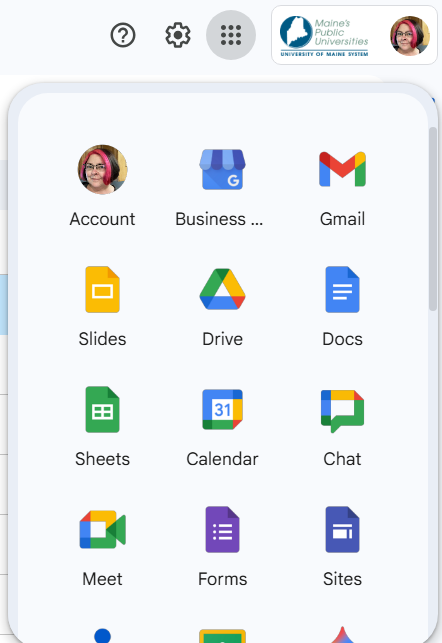
You can find even more Google Apps when you click the Waffle at the top right of the page on any Google App. You will find Account, Business, Gmail, Slides, Drive, Docs, Sheets, Calendar, Chat, Meet, Forms, Sites, Contacts, Classroom, and Gemini. Scroll down to find even more Google apps like Groups, YouTube, Maps, News, Photo, Vault, Keep, Cloud Search, Earth, and more! Each Google App is supported by UMS IT and provides you and your students with data privacy.

Learn more about some of the Google Apps below.

Google Calendar can be used by faculty and students, to create events, RSVP to meeting, schedule appointments and share calendars. You can even create Tasks and To-Do lists, and synch with Zoom to join Zoom meetings easily!

Find more resources on the Google Calendar training and help page from Google.

Whether you are collaborating with other faculty in your department or creating collaboration spaces for students in your class, Google Docs are more than just a word-processing platform! With the ability to easily share, group brainstorm, attach images and files, crowd-source ideas, and assign tasks, Docs makes group work a breeze.

Once you have decided that Google docs will be a great addition for the creation and/or collaboration in your class, it is helpful to provide students with some onboarding materials and to give them a chance to use the tool (before a big assignment is due).  Providing a link to Google tutorials on the eLearning Hub is a great way to make sure your students have the most up-to-date tutorials.

Find more resources on the Google Docs training and help page from Google.

Creating shared Slide presentations streamline the small (or large) group work process! If you have small groups that are creating a collaborative presentation, name the ‘project manager’, and that can be the student that is in charge of creating the initial Slide presentation, and sharing it with their groupmates:

Don’t forget that you can also count on slides for the following functions:

  • Post daily plans to display in a live or remote class
  • Embed in Brightspace
  • Create interactive classroom ‘libraries’

Find more resources on the Google Slides training and help page from Google.

You can use Google Forms for a wide variety of formative assessments with students and easily display survey-style data with your class–or pull that data to a Google Sheet to analyze where you may want to add remediation or extra resources. You can even use it to look for booking time and date preferences for committee meetings!

Google Forms is a powerful multitasker!  This is a form you can use to survey students about their learning experience or to build short entrance or exit tickets designed to display in class, build media-rich interactive quizzes, and more!  PRO TIP: if you are using this as an exit/entrance ticket or poll, and want to display the results, un-check the setting to collect emails and allow users outside the UMS to respond (to make it anonymous).

Find more resources on the Google Forms training and help page from Google.

Google Sheets can be used by faculty and students, to organize group and project-based learning, to complete statistical analyses, track attendance, create to-do lists and more!  You can even integrate with Forms or Google Docs, to make data visual!

Find more resources on the Google Sheets training and help page from Google.

Organize your files and share them securely with Google Drive. You can even integrate Google Drive into Brightspace to add content to your course from your drive.

Find more resources on the Google Drive training and help page from Google.

Boost your own productivity, develop course content, get ideas for lessons, automate tasks in your Google Workspace and more! Google Gemini can be used on its own or integrated into any of the Google Apps.

Find more resources on the Generative AI training and help page from Google.

Google Sites are an easy to create, publish, and manage platform to create public-facing content, links and resources that you and/or students can easily update. It synchs with all of your other Google Tools, so with the push of one button, you can add Calendars, Slides, Docs, Images and more!

Find more resources on the Google Sites training and help page from Google.

Google in Brightspace

Are you looking for a way to easily access Gmail, your Google calendar and Drive from any Brightspace class at UMPI? Follow this easy step to set up your Brightspace courses for easy access to Google Tools!

Did you know that you can dynamically link to your Drive Docs, Slides, Sheets, and more from anywhere in the Brightspace platform, where the Rich Content Editor is available, using the Insert Quicklink option?  Not only that, but you can embed your Drive content directly into your content areas, or group/collaborative workspaces with ease!